
How to Find Email and Phone Numbers From LinkedIn

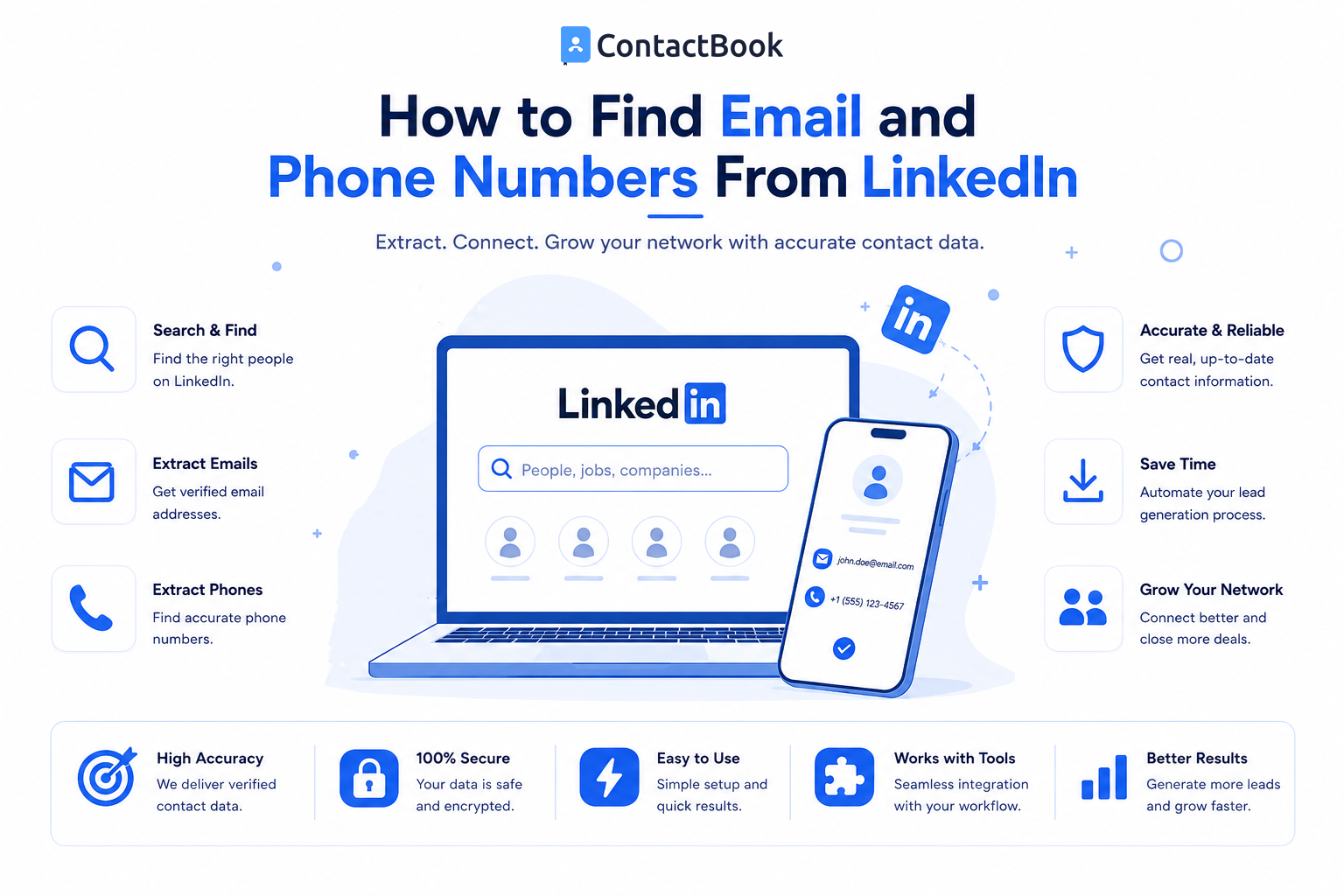
LinkedIn makes it relatively easy to find the right person.
The harder part is finding the right way to contact them.
You may discover a potential customer, recruiter, candidate, founder, investor, partner, or decision-maker on LinkedIn, but their email address or phone number may not immediately appear on the profile.
That creates a common prospecting problem:
You know who you want to reach. Now how do you find their contact information?
There are several legitimate ways to approach this in 2026, including checking LinkedIn's Contact Info section, researching company websites, using contact-enrichment platforms, and using browser-based contact-finder workflows.
This guide explains each method, when it works, and how to turn the information you find into an organized contact rather than another forgotten row in a spreadsheet.
Can You Find Email Addresses and Phone Numbers Directly on LinkedIn?
Sometimes.
LinkedIn allows members to provide contact information in the Contact Info section of their profiles.
This can include:
- Email address
- Phone number
- Website
- LinkedIn profile URL
- Other contact details
However, LinkedIn members control what information they provide and who can see it. LinkedIn currently notes that contact and personal information in this section is generally visible to first-degree connections, with visibility also depending on individual settings.
So the first method should always be the simplest one.
Method 1: Check the LinkedIn Contact Info Section
Start by visiting the person's LinkedIn profile.
Near the introduction section, look for Contact info.
If the person has made relevant information available to you, you may see:
- Phone number
- Website
- Other professional contact details
Why Start Here?
Because you are using information the individual has chosen to make available through their LinkedIn settings.
You also avoid paying for enrichment credits when the contact information is already accessible.
The Limitation
Many users do not make their phone number or email address visible to everyone.
If the information you need is not available, you will need another approach.
Method 2: Check the Person's Company Website
Before jumping to a paid LinkedIn email finder, check the company's website.
This is particularly useful when researching:
- Founders
- Executives
- Consultants
- Agency owners
- Sales representatives
- Recruiters
- Public-facing employees
Look at pages such as:
- About Us
- Team
- Contact
- Leadership
- Press
- Author pages
- Staff directories
You may find a business email address, office number, contact form, or other appropriate communication channel.
For small businesses in particular, senior employees sometimes publish direct business contact information.
Method 3: Look for a Company Email Pattern
Suppose you know:
Name: Rahul Shah
Company: ExampleTech
Company domain: exampletech.com
The company may use an email format such as:
firstname@exampletech.com
or
firstname.lastname@exampletech.com
Finding the company's general email pattern can sometimes help identify a likely professional address.
But there is an important rule:
Don't Treat a Guessed Email as Verified
An email pattern gives you a possibility—not proof.
Before using the address for important outreach, verify it through an appropriate email-verification service.
Otherwise, you risk:
- Email bounces
- Contacting the wrong person
- Damaging sender reputation
- Creating inaccurate contact records
Method 4: Use a LinkedIn Contact Finder
If the person's contact details are unavailable directly, a LinkedIn contact finder may help.
Contact-finder platforms typically use professional databases or data-enrichment systems to associate a person's identity with available business contact information.
You might provide:
- Name
- Company
- Job title
- Company domain
- LinkedIn profile URL
The system may then return information such as:
- Business email
- Mobile number
- Direct dial
- Company information
- Position
- Location
This process is often called contact enrichment.
What Is Contact Enrichment?
Contact enrichment means taking basic information about a person and adding additional useful data to the contact record.
For example:
Before Enrichment
Name: Sarah Williams
Company: ABC Software
After Enrichment
Name: Sarah Williams
Company: ABC Software
Role: VP of Sales
Email: Available
Phone: Available
Location: London
LinkedIn: Profile URL
Company domain: abcsoftware.com
Instead of manually researching each field, enrichment tools try to complete the record automatically.
This becomes especially useful when your sales or recruiting team deals with hundreds of professional contacts.
We will cover this process in much more detail in our upcoming guide to LinkedIn data enrichment.
Method 5: Use a LinkedIn Contact Finder Extension
One of the most convenient workflows involves a browser extension.
Instead of repeatedly copying someone's name from LinkedIn and searching for them in another application, an extension can make contact discovery available while you are already browsing.
A typical workflow may look like:
Open LinkedIn profile
↓
Open contact finder extension
↓
Check available email/phone information
↓
Verify relevant details
↓
Save contact
This is why people often search specifically for a way to find email and phone number from LinkedIn with an extension.
Several types of extensions exist.
Some focus on finding external contact information through B2B data providers.
Others focus more on capturing and organizing the contact information available during your browsing workflow.
For a detailed comparison, see our guide to the Best LinkedIn Phone Number Extractor Chrome Extensions in 2026.
Method 6: Use LinkedIn Sales Navigator for Better Prospect Identification
Sometimes the biggest problem is not finding contact information.
It is identifying the correct person in the first place.
LinkedIn Sales Navigator can help sales professionals narrow prospect searches using more detailed professional criteria.
For example, instead of searching broadly for:
Marketing Manager
you may narrow prospects by factors such as:
- Company
- Geography
- Industry
- Seniority
- Function
- Company size
Once the right person is identified, contact discovery can happen separately through available profile information or an appropriate enrichment workflow.
Think of it this way:
Sales Navigator = Who should I contact?
Contact finder = How can I contact them?
Contact management = How do I remember and manage the relationship?
These are three different parts of the same prospecting process.
Our dedicated guide on How to Find Contact Numbers From LinkedIn Sales Navigator will cover that workflow in detail.
Method 7: Search Public Professional Sources
Another simple method is researching publicly available professional information.
Search for combinations such as:
"Person Name" + "Company" + "email"
or:
"Person Name" + "Company" + "contact"
You may discover:
- Conference speaker pages
- Company biographies
- Business association pages
- Press releases
- Webinar pages
- Professional portfolios
- Public business directories
- Author pages
This works particularly well for people with public-facing roles.
However, finding information online does not mean every piece of data should automatically be used for marketing or unsolicited outreach.
Always consider the source, context, and applicable privacy requirements.
Email vs. Phone Number: Which Should You Find First?
Many prospectors automatically look for both.
That is not always necessary.
Choose the communication method that best fits the situation.
Email Is Often Better For:
- Formal introductions
- B2B proposals
- Partnership requests
- Detailed information
- Sending documents
- Less urgent outreach
Phone May Be Better For:
- Existing business relationships
- Time-sensitive follow-ups
- Prospects who have provided a business number
- Sales teams using calling as part of their established workflow
LinkedIn Messaging May Be Better For:
- First interactions
- Networking
- Warm introductions
- Situations where external contact details are unavailable
- Building context before requesting a call
Finding every possible contact field should not be the objective.
The objective is finding an appropriate way to communicate with the right person.
How to Verify the Contact Information You Find
Finding information is not the same as verifying it.
Business data changes constantly.
People:
- Leave companies
- Change positions
- Change email addresses
- Change phone numbers
- Move between offices
Before adding an important prospect to your database, verify the information where possible.
Check the Company
Make sure the person's current employer matches the company associated with the contact information.
Check the Role
Confirm they still hold the position you are targeting.
Check the Email Domain
A professional email should normally align with the person's current organization when you are targeting them in their business capacity.
Use Verification Tools Where Appropriate
Email verification services can help determine whether an email address appears deliverable.
Contact-data providers may also provide confidence or verification indicators for phone and email data.
Record the Source
When saving a contact, consider recording where the information came from.
For example:
Source: LinkedIn Contact Info
or:
Source: Company website
or:
Source: Contact enrichment provider
This provides useful context later.
Avoid the Biggest Contact-Discovery Mistake
Suppose your team successfully finds 500 prospects.
That sounds great.
But where do those contacts go?
One salesperson saves them in Excel.
Another uses Google Sheets.
Another stores phone numbers directly on their device.
Someone else bookmarks LinkedIn profiles.
The sales manager has yet another prospect database.
You've solved the contact-discovery problem and created a contact-management problem.
The better workflow is:
Find
↓
Verify
↓
Save
↓
Organize
↓
Add Context
↓
Share
↓
Follow Up
Finding an email address or phone number should be the beginning of the relationship-management process—not the end.
How ContactBook Helps
This is where ContactBook fits naturally into the LinkedIn prospecting workflow.
ContactBook's Chrome extension is designed to capture contact details from online sources including LinkedIn and save those details directly into a ContactBook account. Its LinkedIn-specific guide explains that, when information such as an email or phone number has been made available through the profile's Contact Info section, the extension can save those available details along with other profile information.
Instead of:
LinkedIn → Copy → Spreadsheet → Copy → Phone → Forget
the workflow becomes closer to:
↓
Capture available contact
↓
Save in ContactBook
↓
Add tags
↓
Add notes
↓
Set follow-up reminder
↓
Share with relevant team members
ContactBook's current product pages also highlight centralized contact management, team sharing, tags, notes, permissions, and real-time contact access.
Example
Suppose you discover a potential partner on LinkedIn.
Instead of simply storing:
Amit Patel — +91 XXXXX XXXXX
you could maintain:
Name: Amit Patel
Company: XYZ Technologies
Position: Business Development Head
Source: LinkedIn
Tag: Partnership Prospect
Note: Connected after SaaS networking event
Status: Initial conversation complete
Reminder: Follow up next Tuesday
Now anyone with the appropriate access knows:
- Who the person is
- Why the contact matters
- Where the relationship started
- What happened previously
- What should happen next
That is far more valuable than simply collecting another phone number.
What About Free Contact Finder Tools?
You do not always need to pay immediately.
Many contact-discovery platforms provide:
- Free monthly credits
- Limited free plans
- Trial credits
- A small number of phone lookups
- A limited number of email searches
Free options can work well when you are:
- Testing different tools
- Prospecting occasionally
- Targeting only a few high-value contacts
- Running a small sales operation
If this is your priority, see our comparison of the 10 Best Free LinkedIn Phone Number Extractor Tools in 2026.
Important: Understand LinkedIn's Rules
Using LinkedIn does not automatically give you permission to scrape profile information.
LinkedIn currently states that unauthorized crawlers, bots, browser extensions, plug-ins, and other software that scrape, copy, modify, or automate activity on its platform are prohibited. LinkedIn also warns that accounts using prohibited tools can be restricted.
This distinction is important because not every contact tool works in the same way.
A third-party provider may use its own B2B database or other enrichment sources rather than simply copying data from a LinkedIn profile.
Before adopting any contact-discovery product, check:
- How the provider gets its data
- Whether it automates LinkedIn activity
- Its privacy policy
- Its compliance practices
- Whether your outreach complies with relevant regulations
Contact discovery should support legitimate professional relationship building—not indiscriminate data collection.
Best Workflow for Finding LinkedIn Contact Information
If you want a simple process, use this order:
Step 1: Find the Right Person
Use LinkedIn search or Sales Navigator.
Step 2: Check Contact Info
See whether the person has already made an email or phone number available to you.
Step 3: Check Their Company
Look for relevant public business contact information.
Step 4: Use a Contact Finder If Necessary
If information is still missing, consider an appropriate professional contact-data or enrichment provider.
Step 5: Verify the Details
Confirm company, role, email domain, and other important information.
Step 6: Save the Contact
Do not leave valuable prospects scattered across browser tabs.
Step 7: Add Context
Record:
- Source
- Tags
- Notes
- Relationship
- Conversation history
- Next action
Step 8: Follow Up Appropriately
Contact discovery is valuable only when it helps create and maintain meaningful business relationships.
Frequently Asked Questions
Can I find someone's email address directly on LinkedIn?
Sometimes. LinkedIn allows members to provide an email address in their Contact Info section, but visibility depends on the person's relationship with you and their privacy settings. LinkedIn currently says contact and personal information in this section is generally visible to first-degree connections.
Can I find someone's phone number on LinkedIn?
A phone number may appear in the Contact Info section if the member has provided it and their settings allow you to view it. Otherwise, businesses sometimes use professional contact-data or enrichment providers.
What is a LinkedIn email finder?
A LinkedIn email finder generally refers to a tool that uses information about a professional—such as their name, company, domain, or LinkedIn profile—to help identify an associated professional email address.
Can a Chrome extension find emails and phone numbers from LinkedIn?
Different extensions provide different capabilities. Some use external B2B databases to enrich professional profiles, while others help capture contact information available during your browsing workflow. Users should check how each extension works and ensure it complies with LinkedIn's rules.
What is contact enrichment?
Contact enrichment is the process of adding additional information to an existing contact record. For example, a record containing only a name and company might be enriched with a job title, business email, phone number, location, and other professional information.
What should I do after finding a LinkedIn lead's contact information?
Save it in a structured contact-management system. Add the person's company, role, LinkedIn source, tags, notes, relationship context, and follow-up information so other team members can understand and use the contact effectively.
Final Thoughts
Finding email addresses and phone numbers from LinkedIn is not about discovering one magical tool that reveals everything.
A better process combines several methods.
Start with the person's LinkedIn Contact Info section.
Check their company and other appropriate public professional sources.
Use a contact finder or enrichment solution when additional business contact information is genuinely needed.
Verify important information before relying on it.
Then make sure those contacts do not disappear into another spreadsheet.
The most effective prospecting workflow is not simply:
Find more contact information.
It is:
Find the right people → capture the right information → organize the relationship → follow up at the right time.
That is the difference between building a list of contacts and building a professional network your team can actually use.

.png)


.svg)


.svg)



