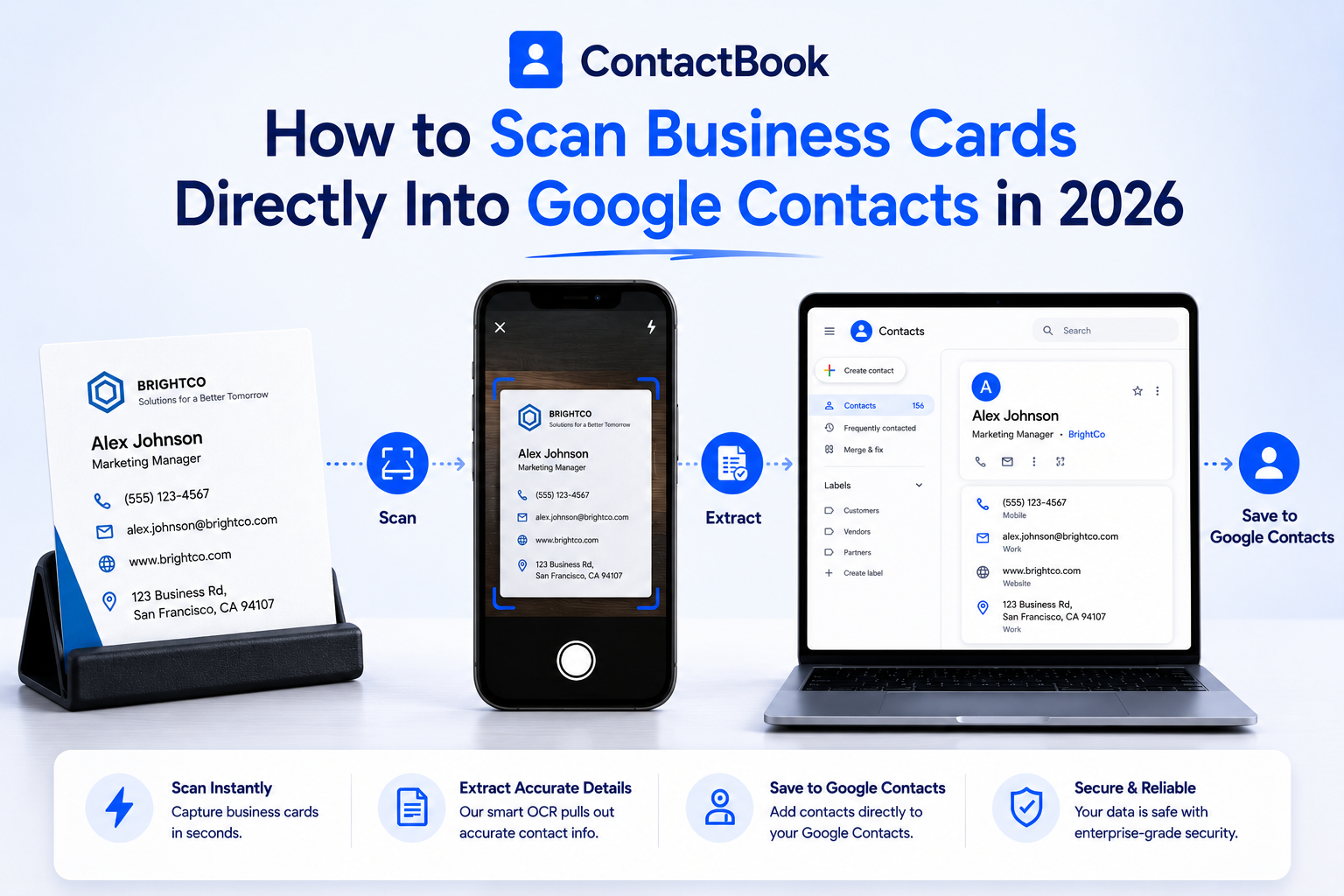
How to Scan Business Cards Directly Into Google Contacts in 2026

Business cards are still everywhere.
You collect them at conferences, networking events, client meetings, trade shows, sales visits, university fairs, hiring events, and local business meetups. Someone hands you a card, you put it in your wallet, and you tell yourself you will save the contact later.
Then “later” never comes.
The card stays in your bag. The person’s email gets lost. The follow-up never happens. A potential client, partner, vendor, candidate, or investor becomes just another forgotten paper card.
That is exactly why business card scanning matters in 2026.
The goal is no longer just to scan a card. The goal is to turn that card into an organized, searchable, shareable contact that your team can actually use.
If your team uses Google Contacts, Gmail, or Google Workspace, the best workflow is simple:
Scan the business card, save the contact digitally, organize it with context, and make it accessible wherever your team works.
This guide explains how to scan business cards into Google Contacts in 2026, why basic scanning is not enough, and how ContactBook helps teams turn paper business cards into useful business relationships.
Why Business Card Scanning Still Matters in 2026
Business cards may look old-fashioned, but they still solve a very modern problem.
When two people meet in person, a business card is still one of the fastest ways to exchange professional information. It includes the basics: name, company, role, phone number, email address, website, and sometimes a QR code or social profile.
ContactBook’s earlier business card scanner guide explains that business cards still matter because they support professionalism, networking, communication, branding, and marketing. A well-designed card can create a lasting impression and help people remember the connection later.
The Real Problem Is What Happens After You Receive the Card
The problem is not the business card itself.
The problem is that most people never turn the card into an actionable contact.
They keep it in a drawer, take a photo of it, or manually type the details into their phone days later. By then, they may have forgotten where they met the person, what they discussed, or why the contact mattered.
That is where scanning becomes valuable.
A business card scanner helps you capture contact details quickly, reduce manual typing, avoid errors, and store contact information digitally. ContactBook’s business card scanner blog also highlights that scanning business cards saves time, reduces clutter, improves productivity, and makes contact information easier to access from anywhere.
In 2026, Speed Is Not Enough
A scanner that only captures a name and phone number is useful, but it is not enough for business teams.
Modern teams need more than a digital copy of a card. They need tags, notes, reminders, shared access, real-time updates, and a way to keep contacts organized after the scan.
That is where a contact management system becomes more powerful than a basic scanner app.
Can You Scan Business Cards Directly Into Google Contacts?
Yes, you can scan business cards and save them as Google Contacts, but the experience depends on the tool you use.
Some people use phone camera features, Google Lens, OCR apps, or business card scanner apps to extract text from a card and create a contact. These tools can work for individual use, especially when you only scan a few cards occasionally.
Several business card scanner guides mention that tools like Google Lens or built-in phone OCR can recognize text on business cards and help create a contact, but they usually do not provide deeper contact management, team sharing, tagging, reminders, or relationship history.
The Basic Way: Scan and Save
The basic workflow looks like this:
You scan the card, the app reads the text, you review the name, email, phone number, and company, then you save it to your phone contacts or Google Contacts.
That is fine for personal networking.
But for businesses, it often creates a new problem: the contact is saved, but it is not organized.
The Better Way: Scan, Organize, Sync, and Share
A better workflow is to scan the business card and immediately add useful context.
That means adding tags, notes, reminders, and shared groups at the time of capture. Instead of saving a contact as a random name in Google Contacts, you can save it as “Conference Lead,” “Vendor,” “Investor,” “Potential Partner,” “Real Estate Buyer,” “Candidate,” or “Client Follow-Up.”
ContactBook’s mobile app supports business card scanning and lets users store scanned cards as contacts, add key information, tags, notes, or place them into shared groups for others to access.
That makes the scanned card useful immediately.
How ContactBook Helps You Scan Business Cards Into Google Contacts
ContactBook gives teams a more complete way to handle business cards.
It is not just a scanner. It is a contact management platform that helps you capture, organize, share, and manage contacts from one place.
ContactBook’s homepage describes the platform as “one place for all your contacts,” helping users manage contacts from a single place and access them everywhere with their team. It also highlights 25,000+ users, 1M+ contacts shared, and 95% user satisfaction.
Scan Business Cards With the ContactBook Mobile App
The ContactBook mobile app is built for contact management on the go.
Its mobile app page explains that users can import contacts from phonebook, Google, or iCloud, organize contacts with custom tags, add notes and follow-up reminders, sync changes with the ContactBook web dashboard, and share contacts with team members.
For business card scanning, ContactBook says users can scan business cards and store them as contacts, then instantly add key information, tags, notes, or shared groups.
This is important because the best time to organize a new contact is right after you meet them.
If you wait until later, you may forget the context.
Connect Scanned Contacts to Your Team Workflow
A scanned contact becomes more valuable when your team can use it.
ContactBook allows teams to share contacts, organize them into groups, and collaborate on contact data. Its homepage says teams can share contacts just like Google Drive files, helping everyone access the most up-to-date information.
This is a major advantage for sales teams, recruiters, agencies, event teams, university admissions teams, real estate teams, consultants, financial advisors, and any business that collects contacts in person.
Instead of one employee keeping all scanned cards on their phone, the right team members can access the contacts too.
Step-by-Step: How to Scan Business Cards Into Google Contacts Using ContactBook
Here is a simple workflow your team can follow.
Step 1: Install the ContactBook Mobile App
Start by installing the ContactBook mobile app on your phone.
The mobile app is designed for secure, synced, smart contact management on the go, with support for Android and iOS. ContactBook’s mobile page also highlights real-time sync with the web dashboard, which means updates made on mobile are reflected automatically in your ContactBook account.
This matters because business cards are usually collected away from your desk.
You need a mobile-first workflow.
Step 2: Open the Business Card Scanner
After installing the app, open the business card scanning feature.
Place the card on a flat surface with good lighting. Make sure the name, phone number, email address, company name, and website are clearly visible.
A clean scan gives you better results and reduces editing later.
Step 3: Review the Extracted Details
After scanning, review the contact details before saving.
This step is important because business cards can have unusual layouts, multiple phone numbers, different email formats, QR codes, or design elements that make scanning harder.
Check the name, job title, company, email, phone number, website, and address before saving the contact.
Step 4: Add Tags and Context Immediately
This is where ContactBook becomes more useful than a basic scanner.
Instead of saving the contact with only a name and number, add context while the meeting is still fresh.
For example, you can tag the contact as “Trade Show 2026,” “Hot Lead,” “Vendor,” “Recruitment Contact,” “Investor,” “Client Referral,” or “Partner Prospect.”
ContactBook’s homepage highlights custom tags as a way to organize contacts by expertise, location, or any criteria that fits your needs, making it easier to filter and search contacts later.
Step 5: Add Notes and Follow-Up Reminders
A business card tells you who someone is.
A note tells you why they matter.
After scanning the card, add a short note about where you met, what you discussed, what they need, or what the next step should be.
ContactBook supports notes, attachments, and reminders so users can keep track of meaningful interactions and avoid missing follow-ups.
This is one of the biggest reasons to use ContactBook instead of a basic scanning app.
You are not just saving a contact. You are saving the relationship context.
Step 6: Add the Contact to a Shared Group
If the contact is relevant to your team, add it to a shared group.
For example, a sales rep can add scanned event leads to a “Conference Leads” group. A recruiter can add candidates to a “Hiring Pipeline” group. An operations manager can add vendors to a “Supplier Contacts” group.
ContactBook’s mobile app page says users can share contacts with the team and delegate contact access directly from the app.
This helps prevent contacts from staying trapped inside one person’s phone.
Step 7: Access the Contact Across Your Workflow
Once saved and organized, the contact becomes easier to use across your contact management workflow.
ContactBook supports web, mobile apps, and Chrome extension access, so teams can manage contacts across different places. Its homepage also highlights shared contacts for Gmail and G Suite, allowing teams to share contacts with Gmail and G Suite team members.
For Google Workspace teams, this means scanned contacts can become part of a broader shared contact system instead of staying isolated on one device.
ContactBook vs Basic Business Card Scanner Apps
A basic scanner is useful when you only want to digitize a card.
ContactBook is better when you want to turn that card into a shared, organized, follow-up-ready contact.
Why Scanning Business Cards Into Google Contacts Is Not Enough
Saving a business card into Google Contacts is a good first step.
But for business teams, it is not the full solution.
Google Contacts Is Usually Personal
Google Contacts works well for individual address books, but business relationships often need to be shared across a team.
If a sales rep scans 50 cards at a trade show and saves them only to their personal Google Contacts, the rest of the team may not have access. That creates the same problem businesses already face: contact silos.
ContactBook solves this by helping teams manage and share contacts centrally. Its homepage says ContactBook helps users manage contacts from a single place and access them everywhere together with their team.
Teams Need Follow-Up Context
A scanned contact without notes is easy to forget.
You may remember the person today, but after a busy event, every card starts to look the same.
ContactBook helps teams add notes and reminders so a scanned card can become a next step. That could be a call tomorrow, a proposal next week, a demo invite, a recruitment follow-up, or a vendor negotiation.
Contacts Need Organization
If every scanned business card goes into one giant contact list, the database becomes messy fast.
Tags and groups help prevent that.
ContactBook lets users organize contacts with custom tags and shared groups, making contacts easier to search, filter, and share.
That is the difference between collecting contacts and managing relationships.
Best Use Cases for Business Card Scanning
Business card scanning is useful for almost every professional, but it is especially powerful for teams that meet people offline.
Sales Teams
Sales teams collect contacts at trade shows, demos, conferences, and client meetings.
Scanning business cards helps reps capture leads quickly, tag them by event or priority, add notes, and set reminders before the lead goes cold.
Recruitment Teams
Recruiters often meet candidates, college representatives, hiring partners, and vendors at events.
A scanned card can be added to a candidate or partner group, tagged by role or event, and shared with the hiring team.
Real Estate Teams
Real estate professionals meet buyers, sellers, brokers, vendors, loan officers, and property managers all the time.
Business card scanning helps keep those contacts organized and accessible, especially when multiple team members need to collaborate.
Event Planners
Event planners collect contacts from venues, decorators, caterers, speakers, sponsors, media contacts, and vendors.
Scanning cards into a shared contact system prevents vendor details from getting lost after an event.
University Admissions Teams
Admissions teams meet students, parents, counselors, school representatives, and education partners at fairs and campus events.
Scanning cards and adding tags like “Fall 2026 Fair,” “Counselor,” “International Student,” or “Partner School” can make follow-up much easier.
Consultants and Agencies
Consultants and agencies rely heavily on relationships.
Scanning a business card and adding notes about the conversation helps preserve context and makes future follow-ups more personal.
Tips to Get Better Business Card Scan Results
A business card scanner can save a lot of time, but the quality of the scan still depends on how you use it.
Use Good Lighting
Scan the card in bright, even lighting. Shadows, glare, or dark backgrounds can make text harder to detect.
Keep the Card Flat
Place the card on a flat surface and avoid bending or holding it at an angle.
Check Small Text Carefully
Phone numbers, email addresses, and job titles are often printed in smaller fonts. Always review these fields before saving.
Add Context Right Away
Do not wait until the end of the week to organize scanned cards.
Add tags, notes, and reminders immediately while you still remember the conversation.
Share Team-Relevant Contacts Quickly
If a contact belongs to the team, add it to the right shared group right away.
This prevents the contact from staying locked inside your phone.
Common Mistakes to Avoid
Business card scanning is simple, but teams still make a few common mistakes.
Mistake 1: Scanning Without Reviewing
OCR is helpful, but it is not perfect.
Always check the extracted information before saving the contact.
Mistake 2: Saving Every Contact Without Tags
A scanned contact without tags can become hard to find later.
Use tags like event name, industry, priority, lead source, or relationship type.
Mistake 3: Forgetting Follow-Ups
Scanning the card is not the goal.
The real goal is to continue the relationship.
Add a reminder so the contact turns into action.
Mistake 4: Keeping Scanned Contacts Private
If the contact is valuable to your business, it should not live only in one person’s phone.
Use shared groups so the right people can access it.
Mistake 5: Treating Google Contacts as the Whole System
Google Contacts is useful, but teams often need more structure.
A tool like ContactBook gives you the extra layer of sharing, tags, notes, reminders, permissions, and team collaboration.
Why ContactBook Is the Best Way to Manage Scanned Business Cards
The best business card scanning workflow is not just about OCR accuracy.
It is about what happens after the scan.
ContactBook helps teams move from paper cards to organized contacts that can actually drive follow-ups, collaboration, and business relationships.
You can scan a card, store it as a contact, add tags, write notes, set reminders, place the contact into a shared group, and keep your team working from updated contact information.
ContactBook is also built for teams that want contact management without CRM complexity. Its website highlights contact importing, team collaboration, custom tags, notes, attachments, reminders, web access, mobile apps, Chrome extension support, shared contacts for Gmail and G Suite, security, permissions, real-time updates, and mobile contact management.
That makes it a stronger option than simply scanning a card into a personal address book.
For individuals, scanning into Google Contacts may be enough.
For teams, ContactBook gives business cards a real system.
Final Thoughts
Business cards are not going away.
But the old way of managing them should.
In 2026, manually typing business card details into Google Contacts is too slow. Keeping cards in a drawer is too risky. Saving contacts without tags, notes, reminders, or team access is not enough.
The smarter workflow is to scan the business card, save the contact digitally, add context, organize it with tags, set a follow-up, and share it with the right people.
That is how a paper card becomes a business relationship.
And with ContactBook, teams can do more than scan business cards.
They can turn every new connection into an organized, searchable, shareable contact that is ready for follow-up.
FAQs
Can I scan business cards directly into Google Contacts?
Yes. You can use tools like Google Lens, phone OCR features, or business card scanner apps to scan business cards and save them as contacts. For teams, ContactBook gives a more complete workflow by helping you scan, organize, tag, add notes, set reminders, and share contacts.
What is the best way to scan business cards into Google Contacts?
The best way is to use a mobile business card scanner that can capture the card, convert it into a contact, and let you review the details before saving. For business teams, it is better to use a contact management tool like ContactBook so scanned contacts can be organized and shared.
Does ContactBook support business card scanning?
Yes. ContactBook’s mobile app lets users scan business cards and store them as contacts. Users can also add key information, tags, notes, or shared groups for team access.
Why should I use ContactBook instead of a basic scanner app?
A basic scanner usually saves contact information. ContactBook helps you manage the contact after scanning. You can add tags, notes, reminders, shared groups, permissions, and team access, making the contact more useful for business follow-ups.
Can I share scanned business card contacts with my team?
Yes. ContactBook allows users to share contacts with team members and collaborate on contact data. This helps teams avoid contact silos and keeps everyone working with updated information.
Is business card scanning useful for sales teams?
Yes. Sales teams can scan cards from events, meetings, and trade shows, then tag leads, add notes, set reminders, and share contacts with the team for faster follow-up.
Is scanning business cards safe?
Scanning business cards is safe when you use a trustworthy tool. ContactBook highlights that its Marketplace apps and plugins are verified by Google, GDPR aligned, and that customer data is stored securely and never sold.
What should I do after scanning a business card?
After scanning, review the contact details, add tags, write a short note about the conversation, set a follow-up reminder, and place the contact into the right group. This makes the scanned contact easier to find and act on later.

.png)


.svg)


.svg)