
How to Share Contacts with Your Team in Gmail (3 Methods Compared)

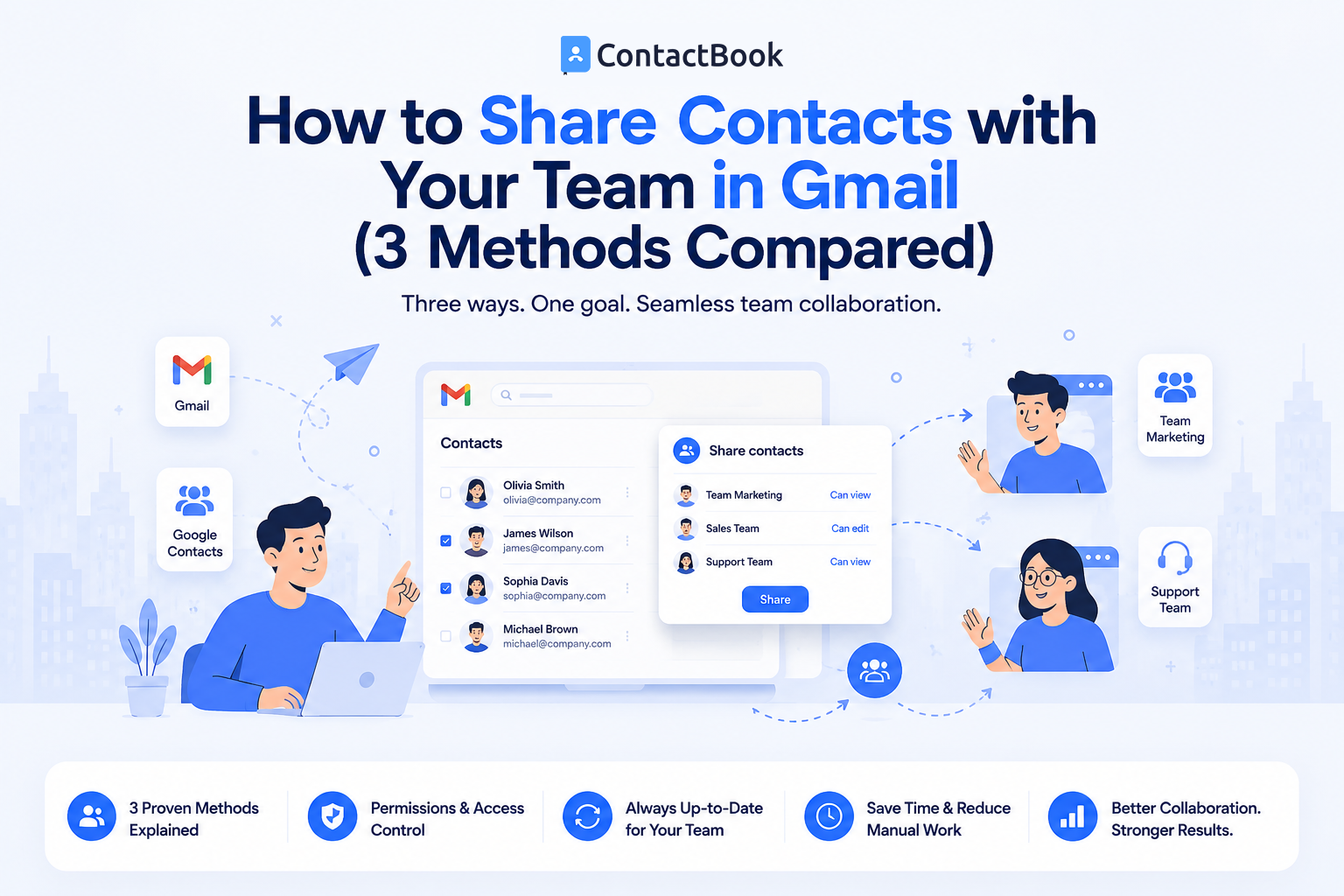
Sharing contact information is a daily task for many businesses. Sales teams need access to customer contacts, support teams need vendor information, and HR teams often share recruiter and candidate contacts. Since many organizations already use Gmail and Google Workspace, it's natural to assume that sharing Google Contacts is simple.
The reality is that Gmail was designed for personal contact management, not collaborative team contact sharing. While there are a few ways to share contacts, each method has different limitations depending on your team's size and workflow.
In this guide, we'll compare three common methods for sharing contacts with your team in Gmail, explain the pros and cons of each, and show why businesses often choose a dedicated contact management solution like ContactBook for long-term collaboration.
Can You Share Contacts in Gmail?
Yes, but not in the same way you share documents or spreadsheets.
Google Contacts primarily works as a personal address book linked to an individual Google account. While Google Workspace offers directory features and there are workarounds for sharing contacts, there isn't a built-in feature that lets every team member easily manage a shared contact list together.
Because of this, businesses often rely on manual processes or third-party tools to keep everyone using the same contact information.
Method 1: Share Contacts Using Google Workspace Directory
Organizations using Google Workspace have access to a company directory that displays employee contact information across the organization.
This works well for internal communication but has limitations for managing customer or vendor contacts.
Advantages
The company directory is built into Google Workspace, so employees can quickly find coworkers without creating separate contact lists.
It also updates automatically when administrators change employee information.
Limitations
The directory is mainly intended for internal employee contacts.
It is not designed to organize customer contacts, clients, vendors, or partners into shared business contact lists that teams can edit and manage collaboratively.
Method 2: Export and Import Google Contacts
Another common approach is exporting contacts from one Google account and importing them into another.
Some businesses use this method when they need to share contacts occasionally.
Advantages
Exporting and importing contacts is free and relatively simple for one-time transfers.
It works when only a small number of contacts need to be shared.
Limitations
This process is entirely manual.
If contact information changes later, the updates are not synchronized. Employees quickly end up with different versions of the same contact list, leading to duplicate records and outdated information.
Method 3: Use a Shared Contact Management Platform
For businesses that regularly share contacts across departments, a dedicated contact management platform is often the most efficient solution.
Instead of manually transferring contacts, everyone accesses the same centralized contact database.
Advantages
A shared contact management platform allows teams to organize contacts using groups, categories, tags, or departments. Changes made to contact information are available to authorized users immediately, reducing duplicate records and improving collaboration.
It also keeps business contacts separate from employees' personal address books, helping organizations maintain continuity when staff members change roles or leave.
Limitations
Unlike spreadsheets or manual exports, dedicated contact management platforms usually require a subscription. However, many businesses find the time savings and improved collaboration outweigh the cost.
Gmail vs. Shared Contact Management
Gmail is an excellent email platform, but it is not built to function as a complete shared contact management system.
Here's how the two approaches compare:
For teams that only need personal contacts, Gmail works well. For businesses that rely on shared customer, vendor, or partner information, a dedicated contact management solution offers significantly more flexibility.
Why Businesses Choose ContactBook
ContactBook is designed specifically for businesses that need to manage and share contacts across teams. Instead of maintaining separate Google Contacts or repeatedly exporting spreadsheets, employees can work from one centralized contact database.
With ContactBook, organizations can create shared contact lists, organize contacts into custom groups, manage permissions, and ensure everyone always has access to accurate business contact information. This improves collaboration, reduces manual work, and helps businesses maintain consistent communication with customers and partners.
Rather than replacing Gmail, ContactBook complements it by providing a better way to organize and share business contacts.
Common Mistakes
One common mistake is assuming Google Contacts automatically syncs shared business contacts across every employee's account. In reality, most sharing methods require manual management or administrative setup.
Another mistake is relying on exported contact files as a long-term solution. These files quickly become outdated because future changes are not synchronized.
Businesses should also avoid storing customer contacts in multiple personal Gmail accounts. Centralizing contact management reduces duplicate records and improves collaboration across teams.
Frequently Asked Questions
Can I share Google Contacts with another user?
Yes, but the available options depend on whether you're using a personal Google account or Google Workspace. Businesses often use export/import methods, the Google Workspace directory for internal contacts, or dedicated contact management tools for ongoing collaboration.
Does Gmail support shared contact lists?
Gmail offers limited options for sharing contacts. It is primarily designed for personal contact management rather than collaborative business contact management.
What is the best way to share contacts with a team?
For businesses that regularly collaborate, a dedicated contact management platform provides the most efficient solution by centralizing contact information, supporting shared contact lists, and keeping records updated for authorized users.
Final Thoughts
Gmail makes managing personal contacts easy, but sharing business contacts across a growing team requires more than an address book. Manual exports, separate contact lists, and outdated spreadsheets often create confusion and slow communication.
Choosing the right method depends on your team's needs. Small teams may find occasional exports sufficient, while organizations using Google Workspace benefit from the built-in directory for internal contacts. However, businesses that frequently share customer, vendor, and partner information usually benefit most from a dedicated contact management solution.
ContactBook helps teams move beyond manual contact sharing by providing a centralized platform for organizing, updating, and sharing business contacts. By combining Gmail for communication with ContactBook for contact management, businesses can improve collaboration, reduce administrative work, and ensure every team member always has access to the right contact information.

.png)


.svg)


.svg)



