How to Share Google Contacts Without Sharing a Password

When several employees need the same customer, supplier or partner contacts, sharing one Google account can look like the fastest solution. Everyone signs in with the same email address, and the contacts appear in one place.
That shortcut creates a larger problem. Anyone with the shared credentials may gain access to more than the contact list. The account may also contain email, files, calendar events, recovery settings and other business information. It becomes difficult to tell who changed a record, remove one person’s access or protect the account with individual security controls.
The better approach is to let every employee use an individual Google account and share only the approved contact groups they need.
This guide explains how to share Google Contacts without sharing a password, how native Google Contacts labels work, and how ContactBook can support controlled contact sharing across Gmail and Google Workspace accounts.
Quick answer
To share Google Contacts without sharing a Google account password, keep every employee on an individual account, organize approved contacts into a Google Contacts label and use a shared-contact system to give selected users access to that group. Assign view, edit or management permissions based on each person’s responsibility. This lets colleagues use shared contacts without receiving the owner’s sign-in credentials or access to the entire address book.
Why sharing one Google account is risky
A shared login makes access difficult to control. The company may know that several people use the account, but it cannot easily connect each action to one responsible user.
Common problems include:
- Multiple employees know the same password.
- A password change interrupts access for everyone.
- Two-step verification depends on one device or phone number.
- Former employees may continue to know the credentials.
- Users may see emails, files or calendar information they do not need.
- Personal and business contacts can become mixed.
- The business cannot apply different contact permissions to different roles.
- It becomes harder to identify who edited or deleted a contact.
Google recommends using account security controls such as Security Checkup, passkeys and two-step verification. Those protections are designed around an identifiable account user. A shared password weakens that model because access depends on a credential known by several people rather than an individually managed identity.
The goal should not be to share an account. It should be to share the required business information.
What Google Contacts labels can do
Google Contacts labels help an account owner organize contacts into groups such as:
- Active customers
- Approved suppliers
- Regional partners
- Recruitment agencies
- Event contacts
- Emergency vendors
- Project stakeholders
A contact can belong to more than one label. Labels also make it easier to find a group or enter the label name when addressing an email in Gmail.
However, a Google Contacts label is not the same as a collaborative Google Drive folder. Creating a label does not automatically give several colleagues permission to maintain the same contact records from their individual accounts.
Google also lets a user share individual contacts as contact files. This is useful for sending a small number of records, but it usually creates a copy. If the original phone number changes later, the recipient’s copy may remain outdated.
For a team that needs ongoing access, the requirement is not merely to send contacts once. The team needs a maintained group with clear ownership, permissions and an update process.
For a step-by-step explanation of labels, see How to Create and Share a Contact List in Gmail Using Google Contacts Labels.
Copies and shared contacts are not the same
Before choosing a method, decide whether colleagues need a copy or continuing access.
Send a copy when
- The recipient needs one or two contacts.
- Future changes do not need to reach the recipient.
- The contact information is appropriate to send as a VCF or another approved format.
- The recipient will maintain the record independently.
Use a shared contact group when
- Several employees need the same business contacts.
- Contact details change regularly.
- One update should reach authorized users through the configured sync process.
- The company needs separate viewing and editing rights.
- Access must be removed when a person changes roles or leaves.
- The contact list belongs to the organization rather than one employee.
This distinction prevents a common failure: sending a contact file to ten people and assuming that the company now has one shared list. It has ten separate copies.
How ContactBook supports Google contact sharing
ContactBook documents a Google Sync workflow that connects a Google account, brings Google Contacts and labels into a Google Space and allows selected groups to be shared with other Gmail or Google Workspace users.
Its contact-sharing guidance identifies three group roles:
- Can View: The user can access the shared contacts without being responsible for maintaining them.
- Can Edit: The user can update contact information where their work requires it.
- Manager: The user can manage the group and its collaboration settings.
This structure lets each employee keep an individual login. The organization shares the relevant contact group instead of distributing the source account’s password.
ContactBook also documents cross-account contact sharing, Groups, Spaces, permission management and Google synchronization. Google Sync and its frequency depend on the selected plan, so confirm the current ContactBook pricing before planning a rollout.
How to share Google Contacts without sharing a password
Use the following process for an initial team setup.
Step 1: Choose the account that owns the source contacts
Select an approved business account to hold or connect the source contact list. Avoid using an employee’s personal Gmail account for an organizational directory.
Document:
- The account owner or responsible administrator
- The business purpose of the contact list
- The person responsible for contact quality
- The backup owner if the primary owner is unavailable
- The offboarding process for anyone who manages the group
The technical owner and relationship owner do not have to be the same person. An administrator may manage access while a sales, procurement or operations employee maintains the contact details.
Step 2: Separate business contacts from personal contacts
Do not share the account’s entire address book merely because a team needs one category of contacts.
Review every proposed record and remove:
- Personal friends and family contacts
- Contacts with no current business purpose
- Private notes that colleagues should not see
- Outdated records
- Duplicate entries
- Information the organization is not permitted to share
If you need more detail on limiting the scope, read How to Share a Contact Group Without Sharing Your Entire Address Book.
Step 3: Create a purpose-specific Google Contacts label
In Google Contacts:
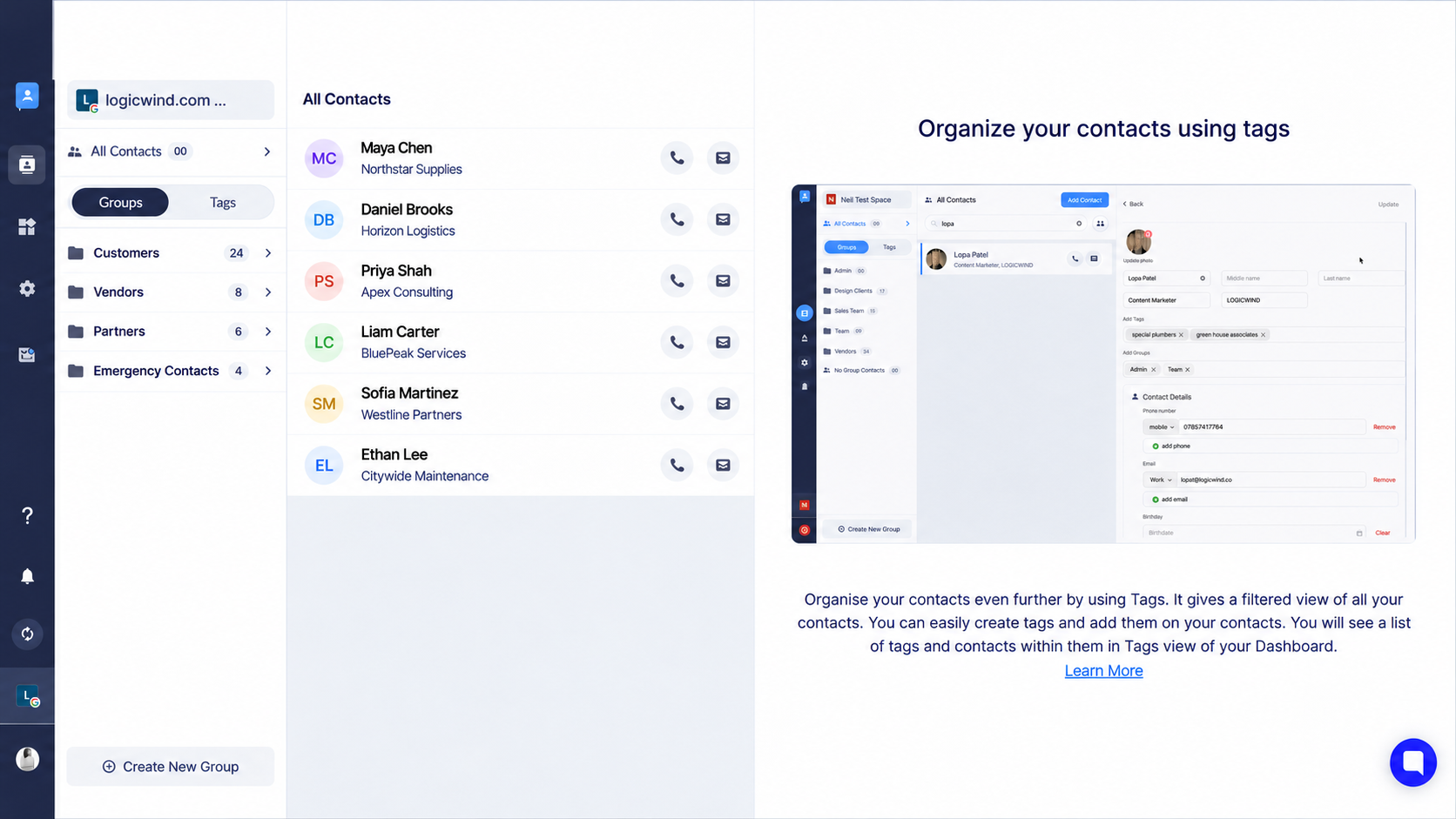
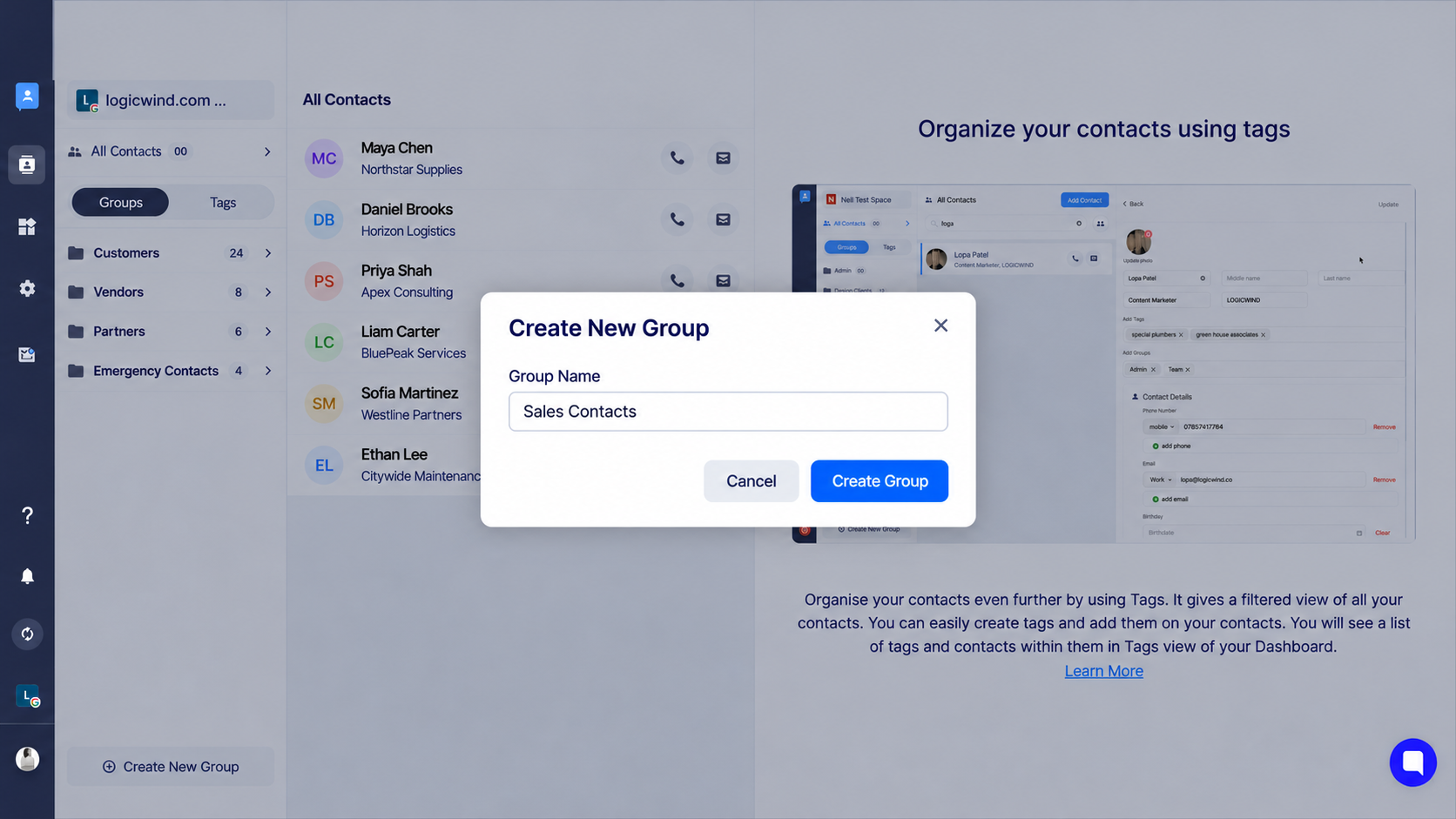
- Create a clearly named label.
- Add only the approved business contacts.
- Check names, email addresses and phone numbers.
- Remove records that do not belong in the group.
- Confirm that the label name explains its purpose.
Use names such as Approved Suppliers, Customer Escalations or West Region Partners. Avoid vague labels such as Important or Main List, which do not tell employees what the group contains.
Step 4: Connect the approved Google account to ContactBook
Follow ContactBook’s current Google Sync setup instructions and authorize the permissions required for the selected Google account.
ContactBook distinguishes between importing contacts and two-way Google Sync:
- A one-time import copies contacts into ContactBook but does not maintain an ongoing two-way connection.
- Two-way Google Sync can reflect supported changes between Google Contacts and ContactBook for eligible plans.
Confirm which workflow and plan you are using before telling employees when updates should appear.
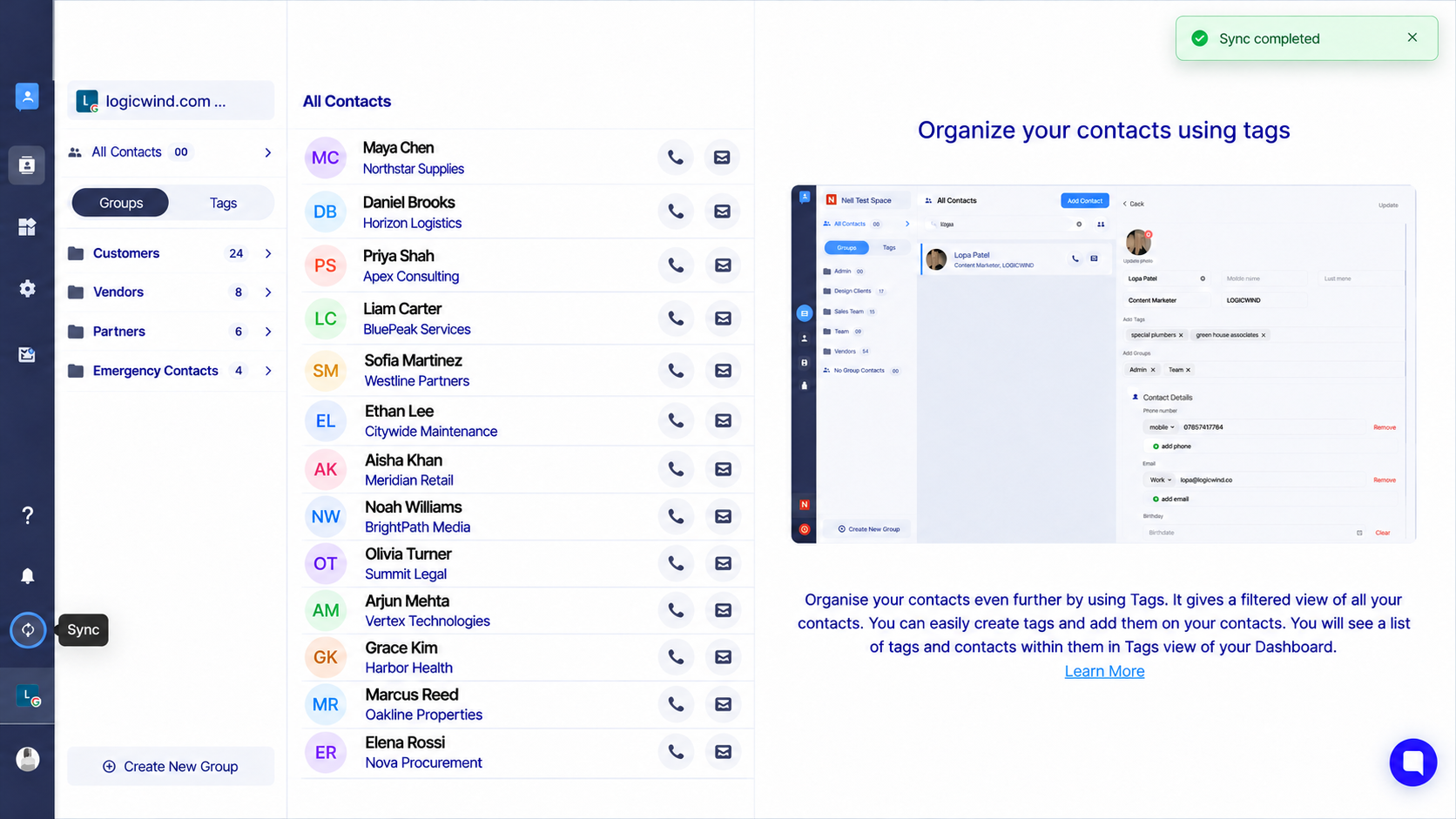
For setup guidance, review How Google Sync Works in ContactBook.
Step 5: Share only the required group
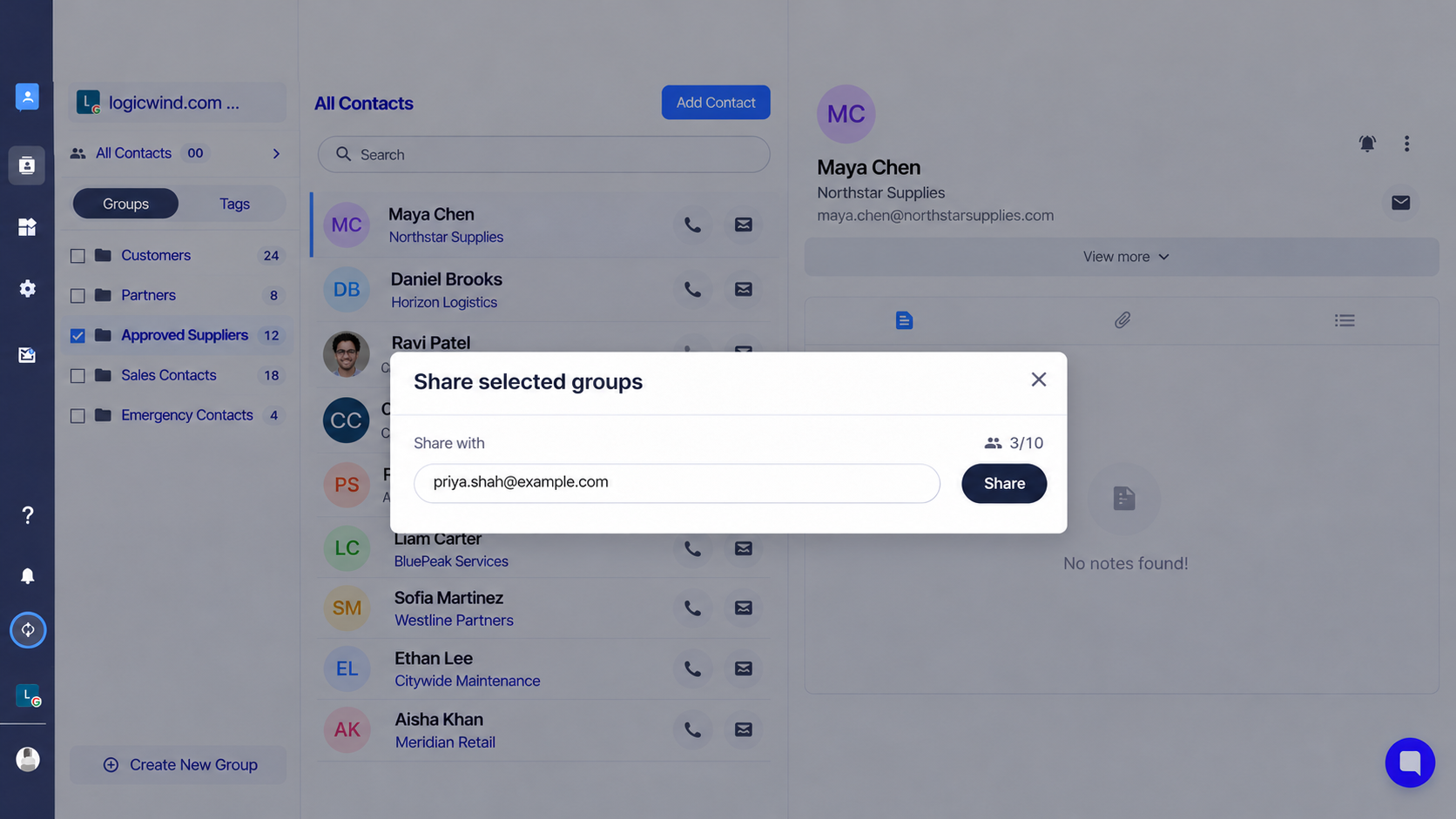
Select the synchronized group or label and invite the colleagues who need it. Use their individual Gmail or Google Workspace accounts.
Do not add the entire company by default. Start with the employees who have a clear business reason to use the group.
For example:
- Procurement employees may receive an approved supplier group.
- Account managers may receive their customer group.
- Facilities staff may receive maintenance and emergency contacts.
- Event coordinators may receive venue and vendor contacts.
This keeps each shared list relevant and limits unnecessary exposure.
Step 6: Assign the lowest necessary permission
Viewing a contact and maintaining a contact are different responsibilities.
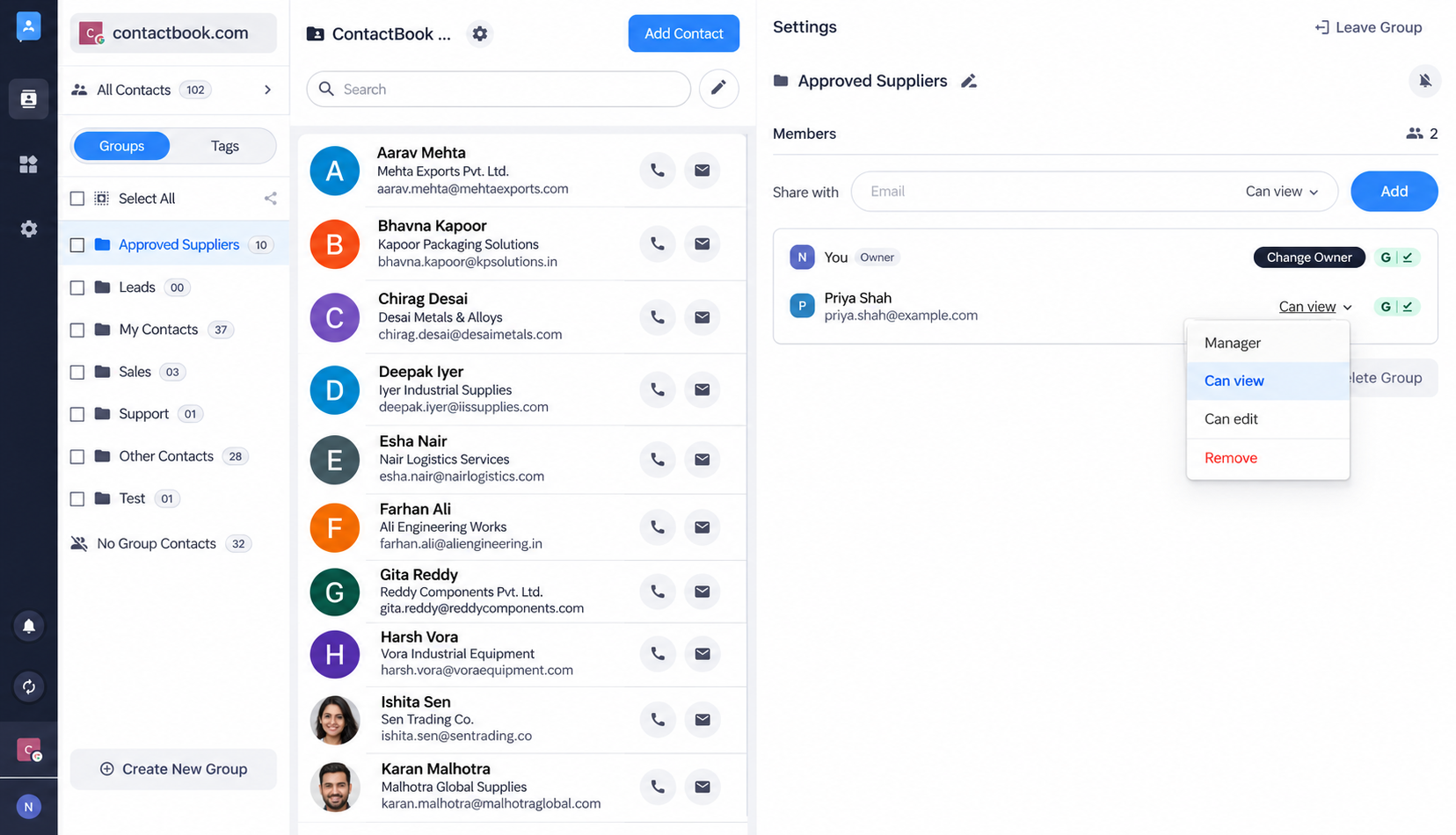
Give Can View access to employees who only need to call, email or identify a business contact. Give Can Edit access to employees responsible for correcting and maintaining the record. Reserve Manager access for people who manage the group and its users.
Avoid giving management or editing access simply to save setup time. Excessive permissions can lead to accidental changes and unclear ownership.
Step 7: Test the workflow with a small group
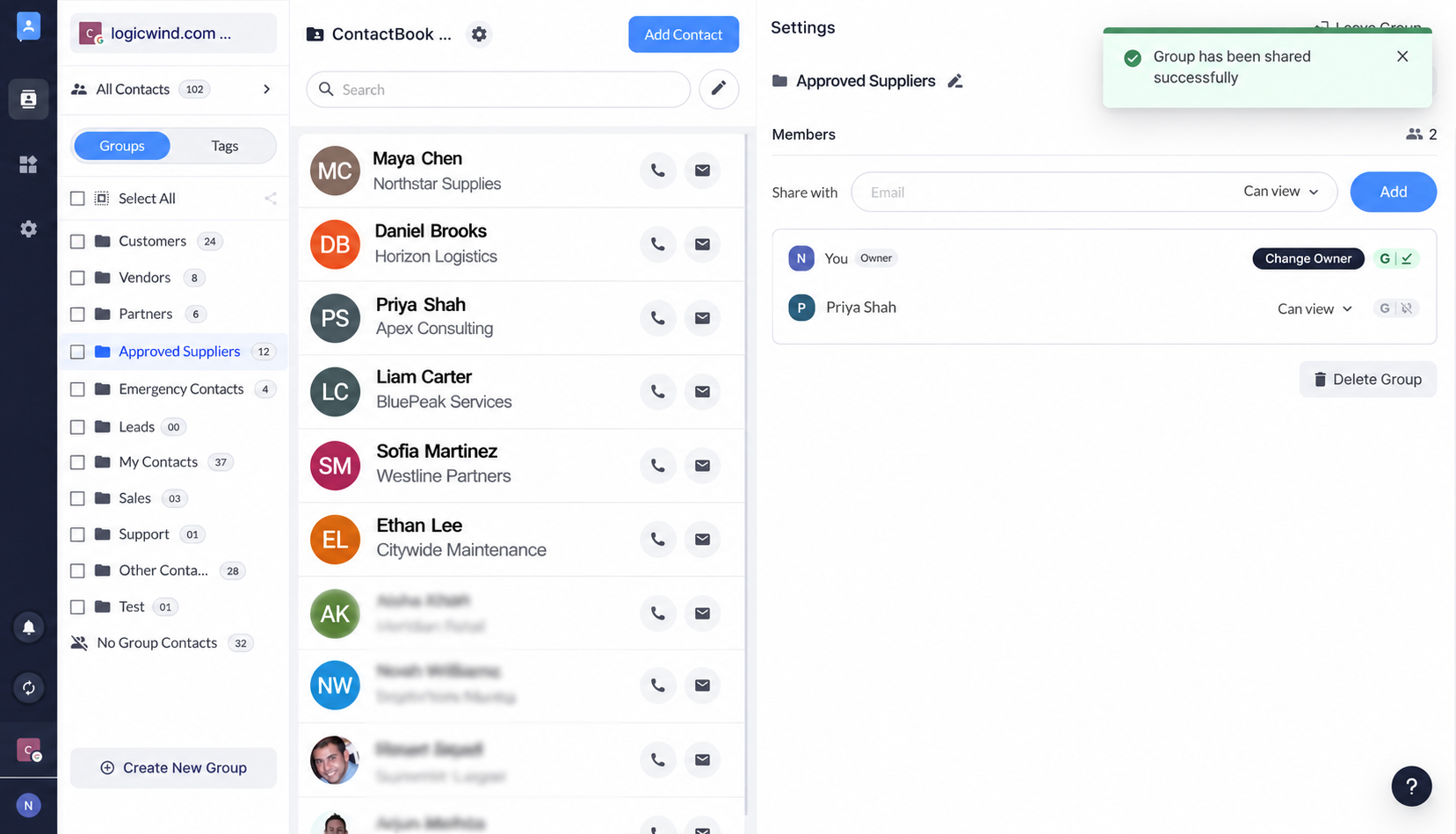
Before sharing hundreds or thousands of contacts, test one label with a few non-sensitive records.
Confirm that:
- The invited user can access the group from the intended account.
- A view-only user cannot make changes they should not make.
- An editor can update an approved field.
- The update appears after the expected sync process.
- Removing a user removes their ongoing access through ContactBook.
- Personal contacts outside the group remain unshared.
Testing a small group makes mistakes easier to correct before a company-wide rollout.
Step 8: Create rules for ongoing maintenance
A shared contact group needs an operating process after setup.
Define:
- Who may add new contacts
- Who may approve deletions
- Which fields are required
- How duplicates are reviewed
- How employees report incorrect information
- How often the group is reviewed
- How access changes during role changes
- What happens when an employee leaves
ContactBook’s duplicate feature identifies potential duplicates for review and merging. Review possible matches before combining records rather than assuming that similar names always represent the same person.
What happens when an employee leaves?
Shared passwords make offboarding difficult because changing the password affects every remaining user. If the password is not changed, the former employee may still know it.
Individual accounts and group-based access provide a cleaner process:
- Identify the shared groups available to the departing employee.
- Transfer relationship ownership where required.
- Remove the employee from those groups.
- Confirm that another authorized employee can maintain important contacts.
- Remove access to the employee’s organizational Google account through the company’s Google Workspace process.
- Review any exports or local copies according to company policy.
ContactBook does not replace Google Workspace account administration. Suspending accounts, transferring email and managing the company directory remain administrative tasks in Google Workspace.
For a broader ownership process, see How to Manage Company Google Contacts: Ownership, Access, and Employee Offboarding.
Common mistakes to avoid
Sharing the source account password
This exposes more than the intended contacts and makes individual access difficult to manage.
Sharing every contact
Create purpose-specific groups. Employees should receive only the contacts necessary for their approved work.
Giving everyone editing access
Most users may only need view access. Limit editing and management permissions to responsible employees.
Treating a contact export as a live shared list
CSV and VCF files create copies. They do not automatically keep every recipient’s records updated.
Mixing imports with synchronization
A one-time import and two-way Google Sync are different. Confirm the selected setup and plan.
Forgetting offboarding
Contact access should be reviewed whenever an employee leaves, changes departments or no longer needs the group.
Shared Google Contacts setup checklist
Before rollout, confirm that:
- Every employee uses an individual account.
- No Google account password is distributed to the team.
- The source account has an assigned owner.
- Business and personal contacts are separated.
- Shared labels have clear names and purposes.
- Only approved contacts are included.
- Every user has the minimum required permission.
- One small group has been tested.
- Sync expectations are documented.
- Duplicate records have been reviewed.
- Offboarding steps include removing group access.
- The list has a scheduled review owner and date.
Frequently asked questions
Can several employees use the same Google Contacts list?
Yes. Employees can use individual accounts while receiving access to an approved shared contact group through a contact-sharing workflow. They do not need the source account’s password.
Can I share a Google Contacts label directly with another user?
Google Contacts labels organize contacts within an account. The standard label workflow does not provide Drive-style collaborator roles for maintaining the same label across several individual accounts. ContactBook documents synchronizing Google labels as groups and sharing them with selected Gmail or Google Workspace users.
Does ContactBook require employees to share a Google password?
No. ContactBook’s sharing workflow uses the individual accounts of invited users. Share the relevant group and assign a role instead of distributing the source account credentials.
Can recipients edit shared Google Contacts?
Editing depends on the permission assigned to the user. ContactBook documents Manager, Can Edit and Can View roles for shared groups.
Can I share contacts with someone outside my Google Workspace domain?
ContactBook documents sharing with Gmail users and users in other Google Workspace domains. Confirm the current plan and test the intended cross-domain workflow before a full rollout.
Will shared contacts update immediately?
Update timing depends on the plan, configuration and sync process. ContactBook’s current pricing page lists automatic Google Sync every four hours on the eligible plan. Avoid promising immediate updates without testing your setup.
Is sending a VCF file the same as sharing contacts?
No. A VCF file gives the recipient a copy. A shared contact group is intended to provide continuing access to a maintained set of records.
Final thoughts
Sharing Google Contacts should not require sharing a Google account. Keep every employee on an individual account, separate personal contacts from business records and share only the groups required for work.
The strongest setup combines clear ownership with purpose-specific labels, minimum necessary permissions, tested synchronization and a documented offboarding process.
ContactBook can help organizations turn supported Google Contacts labels into shared groups for selected Gmail and Google Workspace users. Start a free ContactBook trial and test one approved contact group before expanding the process across the organization.