
Access Shared Team Contacts on Android and iPhone

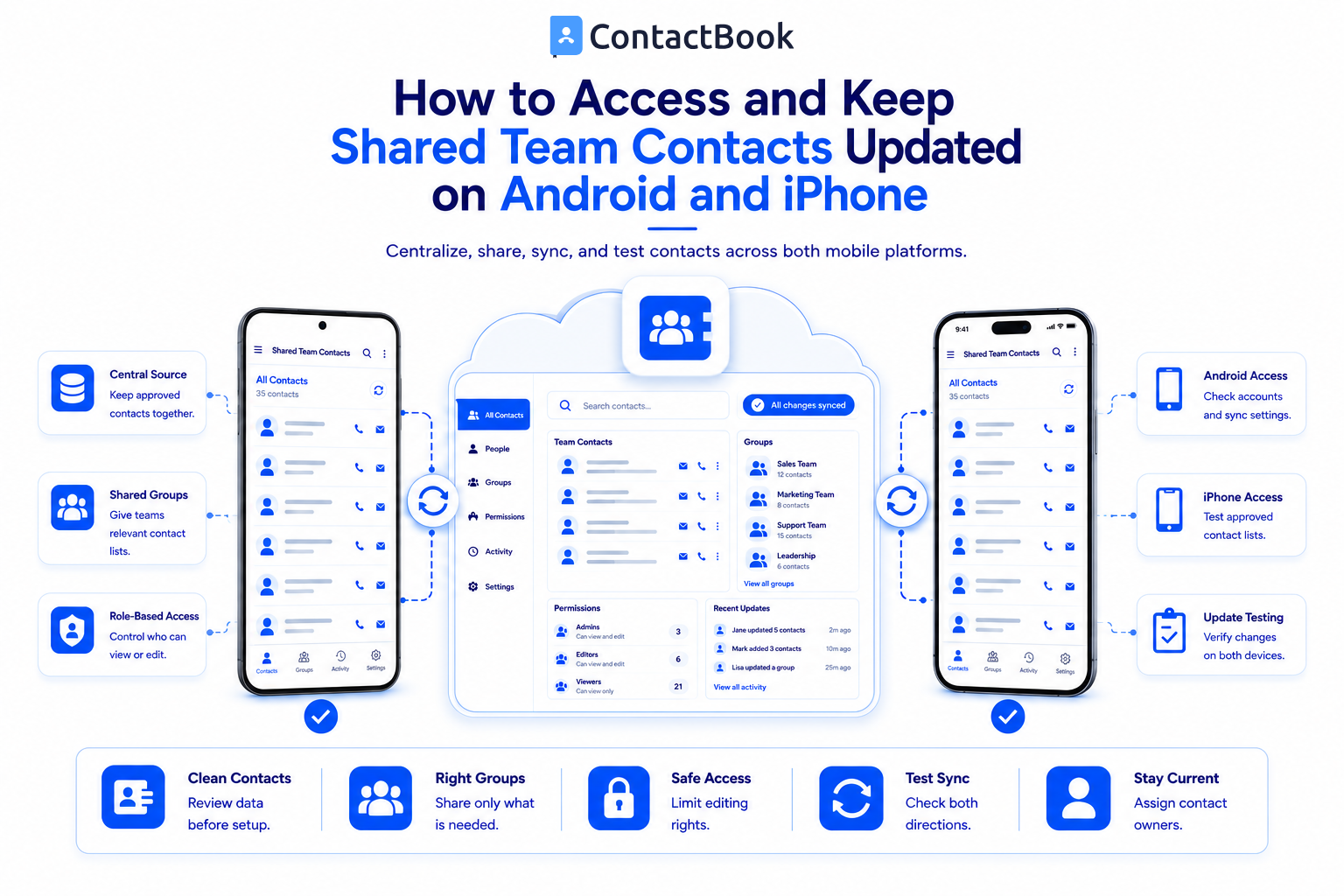
The simplest way to keep shared team contacts available on Android and iPhone is to use one central team address book, share only the required groups, assign editing permissions carefully, and connect each user’s approved account or mobile app.
The setup should be tested on both operating systems before a full rollout. Contact updates can depend on account authorization, device settings, internet connectivity, permission roles, and synchronization frequency.
Why Mobile Team Contacts Become Outdated
Many teams still distribute contacts through spreadsheets, messaging groups, email attachments, or VCF files. These methods can copy contact data to a phone, but they do not create a reliable update process.
Common problems include:
- Employees save separate versions of the same contact
- A new phone number is updated on one device but not others
- Personal and business contacts become mixed
- Former employees retain lists that are no longer managed
- Teams cannot tell who is allowed to edit a record
- New employees wait for someone to send the latest file
A central shared address book addresses the process, not only the initial transfer.
What You Need Before Setup
Prepare these items before connecting phones:
- An approved source for team contacts
- Clean contact records with consistent fields
- Groups for customers, vendors, partners, or departments
- A list of employees who need access
- Defined view, edit, and management permissions
- Supported Google, Microsoft, or application accounts
- One Android and one iPhone for testing
Also decide whether contacts should appear inside a dedicated app, the native phone contact list, Google Contacts, or more than one location.
How ContactBook Supports Mobile Contact Access
ContactBook provides a centralized place for team contacts. Its public product information documents Google and Microsoft account connections, CSV and VCF imports, shared groups and Spaces, role based access, tags, notes, search, Google sync, cross domain sharing, and Android and iOS apps.
For Google based teams, authorized Google Contacts and labels can be synchronized into a Google Space in ContactBook. Selected groups can then be shared with other Google users. ContactBook also states that shared contact changes can be reflected in shared users’ Google Contacts.
The exact mobile experience depends on the workflow selected by your administrator. Follow the current ContactBook help instructions and test the account configuration used by your organization.
Step 1: Centralize the Team’s Contacts
Start by moving approved contacts into one managed location.
ContactBook supports several routes:
- Connect a Google account
- Connect a Microsoft account
- Import a CSV file
- Import a VCF file
Create a backup before migration. Review duplicates, missing phone country codes, incomplete names, and outdated records before sharing the list.
Step 2: Organize Contacts Into Groups or Spaces
Do not share every contact with every employee.
Create clear groups such as:
- Active customers
- Approved suppliers
- Regional partners
- Field service contacts
- Event contacts
- Internal emergency contacts
ContactBook Spaces can separate contacts for different teams, companies, or working contexts. A simple structure improves search and reduces unnecessary exposure.
Step 3: Assign the Right Permissions
Give users only the access they need.
- Can View: Suitable for employees who only need to call, email, or identify contacts
- Can Edit: Suitable for employees responsible for correcting and maintaining contact details
- Manager: Suitable for users who manage a shared group and its access
Limit editing rights when many employees use the same list. Too many editors can create accidental changes and unclear ownership.
Step 4: Set Up Android Access
The exact screens may vary by Android version and device manufacturer. A typical rollout should include these checks:
- Install the approved ContactBook app or connect the approved Google account according to company instructions.
- Sign in with the employee’s authorized account.
- Confirm that the correct shared groups are visible.
- If using Google Contacts sync, verify that contact synchronization is enabled for the approved account in Android settings.
- Open the phone’s Contacts app and confirm which account or label is being displayed.
- Search for a test contact using its name, company, or phone number.
- Make an approved test update and confirm where it appears.
Avoid switching on every account and contact source at once. That can produce duplicate looking entries in the device contact app.
Step 5: Set Up iPhone Access
An iPhone rollout should use the same controlled approach:
- Install the approved ContactBook app or add the approved contact account according to company instructions.
- Sign in with the employee’s authorized account.
- Confirm that the required shared groups are available.
- Review contact account settings in iOS and enable Contacts only for approved business accounts.
- Open the Contacts app and review the selected lists.
- Search for the same test contact used on Android.
- Make an approved test change and confirm how it is reflected.
Keep personal iCloud contacts separate from shared business contacts where possible. Clear account naming and group structure make troubleshooting easier.
Step 6: Test Updates in Both Directions
Do not assume synchronization is working because contacts appeared once.
Run a controlled test:
- Create a test contact in the approved source.
- Confirm that the Android user can see it.
- Confirm that the iPhone user can see it.
- Ask an authorized editor to change one field.
- Confirm that the update appears in the expected locations.
- Ask a view only user to verify that editing is restricted as intended.
- Remove the test record when complete.
Record how long each step takes. Avoid promising “instant” or “real-time” behavior unless the tested plan, account type, and documentation support that claim.
Step 7: Create Rules for Keeping Contacts Updated
Technology cannot keep a contact list useful without ownership.
Define these rules:
- Who may create new shared contacts?
- Who approves corrections?
- How are duplicates reviewed?
- Which fields are required?
- How often are stale contacts checked?
- What happens when an employee changes teams?
- How is access removed during offboarding?
Assign an owner to every important group. A monthly review is often more useful than waiting for users to report errors.
Troubleshooting Common Mobile Contact Problems
A shared group does not appear
Check the signed-in account, sharing invitation, user permission, selected list, and contact sync setting. Confirm that the user was added to the correct group or Space.
Contacts appear twice
The same person may exist in Google, iCloud, Microsoft, a device account, and an imported file. Review which accounts are displayed before deleting anything. Merge or clean records only after backing up the data.
An update appears on one phone but not another
Check internet access, background account settings, authorization, sync status, and the contact source being displayed. Then compare the behavior with ContactBook’s current help documentation.
A user can edit contacts they should only view
Review the user’s role for that group. Also check whether the person owns a separate copy of the contact in another account.
A contact is visible in the app but not during an incoming call
Caller identification can depend on permissions, phone settings, operating system behavior, number formatting, and which contact source the dialer uses. Test this separately from basic in-app access.
Mobile Contact Management Checklist
Before inviting the entire company, confirm that:
- Contacts have been cleaned and backed up
- Groups have clear names and owners
- Permissions follow job responsibilities
- Android access has been tested
- iPhone access has been tested
- Creation, editing, and deletion have been tested
- Duplicate display has been reviewed
- Offboarding steps are documented
- Employees know where to report incorrect contact data
Frequently Asked Questions
Can teams share contacts between Android and iPhone?
Yes. A cross-platform shared address book can make the same approved contact groups available to Android and iPhone users. Setup and update behavior depend on the accounts, apps, permissions, and synchronization method.
Does ContactBook have Android and iOS apps?
ContactBook’s public materials document Android and iOS apps for accessing and managing contacts.
Can ContactBook share Google Contacts with other users?
Yes. ContactBook documents Google Contacts and label synchronization, group sharing, permissions, and sharing with Google Workspace or Gmail users.
Will every update appear immediately?
Do not assume that every plan and configuration updates instantly. Synchronization time can depend on the product plan, account type, device, network, and settings. Test the selected workflow.
How can a team prevent duplicate contacts?
Use one approved source, control imports, review displayed accounts, standardize required fields, and assign responsibility for duplicate review.
Should every employee receive editing access?
No. Give view access to employees who only use the contacts. Reserve editing and management rights for people responsible for maintaining the data.
Final Thoughts
Keeping shared contacts updated across Android and iPhone requires more than installing an app. The team needs a central source, clear groups, limited editing rights, tested account settings, and ownership of ongoing data quality.
Next step: Start a ContactBook free trial and test one shared contact group on an Android phone and an iPhone.

.png)


.svg)


.svg)



